RSPS Mobile: What to Check Before Playing on Android or iPhone
By RuneRank · Published 7 Oct 2026
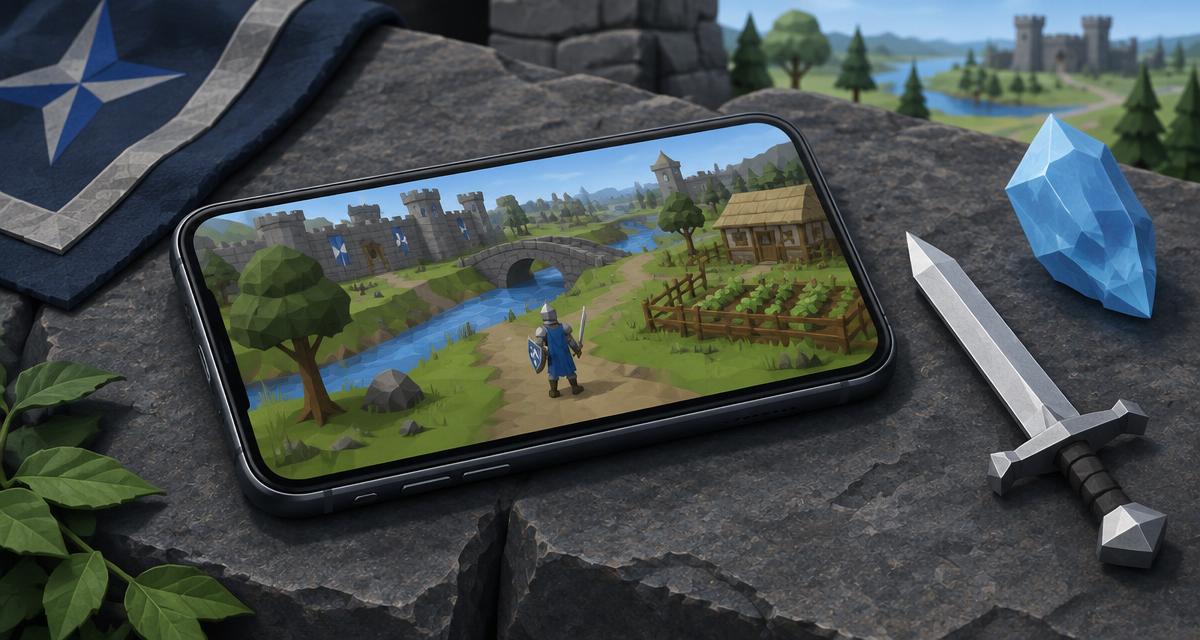
Some RuneScape private servers offer mobile access, but support depends on the individual server and your device. An Android download does not mean an iPhone version exists, and the official Old School RuneScape app is not a universal client for private servers.
If you want an RSPS for a commute, a quick skilling session or time away from your desk, check the actual mobile experience before investing in an account. This guide is a compatibility checklist, not a claim that any particular server currently supports every phone.
Android and iPhone are different checks
Android RSPS clients
A server may distribute an Android app through its own download page. An APK is an Android installation package, not proof that an app is trustworthy or compatible with your phone. Check the supported Android version, current release date and installation instructions directly with the server.
Keep Google Play Protect enabled. Google explains that it also checks apps from outside Google Play and can warn about, block or remove harmful apps. A server asking you to turn protection off is a reason to stop, not a routine installation step. 1
iPhone and iPad support
An Android APK cannot be installed as an iPhone app. Ask whether the server has a currently maintained iOS option or an explicitly supported browser client. Opening the server website in Safari is not the same as playing the game.
Do not assume a guide for another server applies. Before using an unfamiliar installation method, understand who distributes the software, what permissions it needs and whether the server officially supports it. If the answer is unclear, choose another server or play on a supported computer.
Ask these seven questions before joining
- Does the current release support my exact operating system and device?
- Where is the official mobile download or browser address?
- Can the same account and character be used on desktop and mobile?
- Are mobile players on the same game world as desktop players?
- Are all activities supported, or only part of the game?
- How are updates installed, and when was the mobile client last updated?
- Are there recent answers to mobile problems in the server's support channel?
Shared progress and shared worlds are server-specific. Get confirmation rather than assuming the same login automatically means the same character.
Test the controls before committing to a grind
Spend a short first session testing movement, inventory management, banking, chat and logout. If combat matters to you, test camera movement and switching between items and prayers somewhere low-risk.
A desktop interface squeezed onto a small screen can technically run while still being frustrating. Look for readable text, reliable taps and menus that remain usable when your keyboard is open. Check performance during ordinary gameplay, not just at the login screen.
Long sessions can also affect battery life and device temperature. Try modest graphics settings if the client provides them, and stop if your device becomes uncomfortable to use. No private-server listing can guarantee performance on every phone.
Choose the gameplay after checking compatibility
For short sessions, compare the server's progression and activities with the time you actually have. For group bosses or competitive combat, reliable controls and connection quality may matter more than advertised experience rates.
Browse RuneRank's server list, then use each listing's official website to verify current device support. Our PvM guide can help you compare combat content, while OSRS vs RSPS explains the broader differences.
A quick mobile decision rule
Choose a server only when you can verify the download source, device support and controls yourself. Popularity and a mobile label are starting points, not a compatibility or security guarantee. Read our RSPS download safety checklist before installing any client.